How to Setup IPTV on Smart TV (Samsung & LG)
Home / IPTV Setup Guides
Setup IPTV on Smart TV (Samsung & LG)
Enjoy the best of IPTV on your Smart TV! This comprehensive guide walks you through the simple steps to setup IPTV on Smart TV Samsung and LG. Whether you prefer IPTV Smarter pro, IBO Player, or IB Player pro, follow the links below to get streaming in minutes.
Getting Started with IPTV Nordic Pro on Your LG or Samsung TV:
To begin using the IPTV Nordic Pro service on your LG or Samsung Smart TV, follow these simple steps:
Open the App Store on your TV and search for one of the recommended IPTV apps listed below.
Choose one of the apps and follow the setup instructions provided to activate your IPTV subscription.
Explore the methods below for detailed guidance on setting up IPTV on your TV:
How to Set Up IB Player Pro/ IBPlayer Pro Player for Smart tv ( Samsung & LG)
Follow these simple steps to install and activate IbPro Player on your Android device or Smart TV:
1. Install IbPro Player
- Samsung TV (Samsung App Store): Search for IB Player Pro
- LG TV (LG Content Store): Search for ibPlayer Pro
- Install the app on your device.
2. Retrieve Your Activation Code
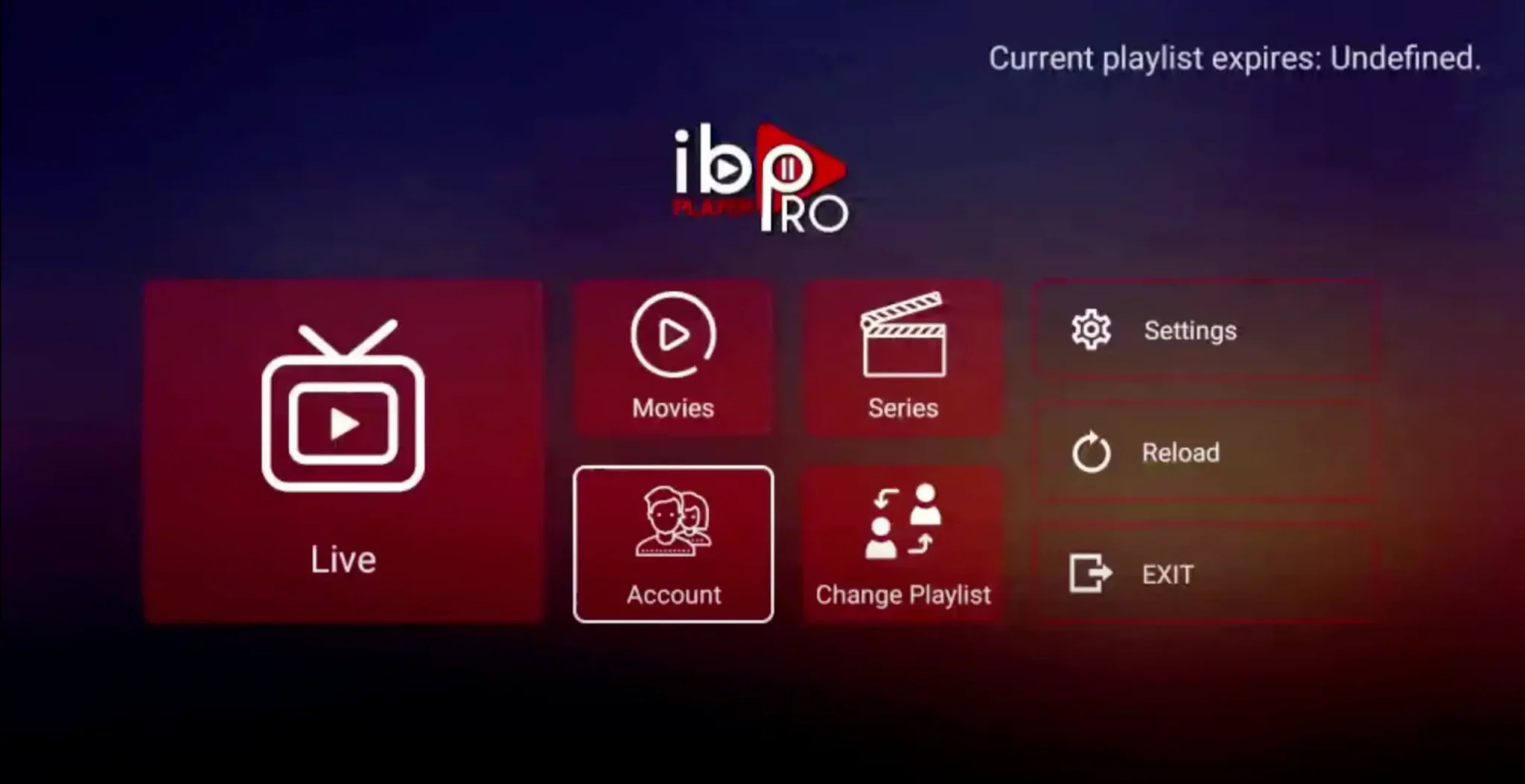
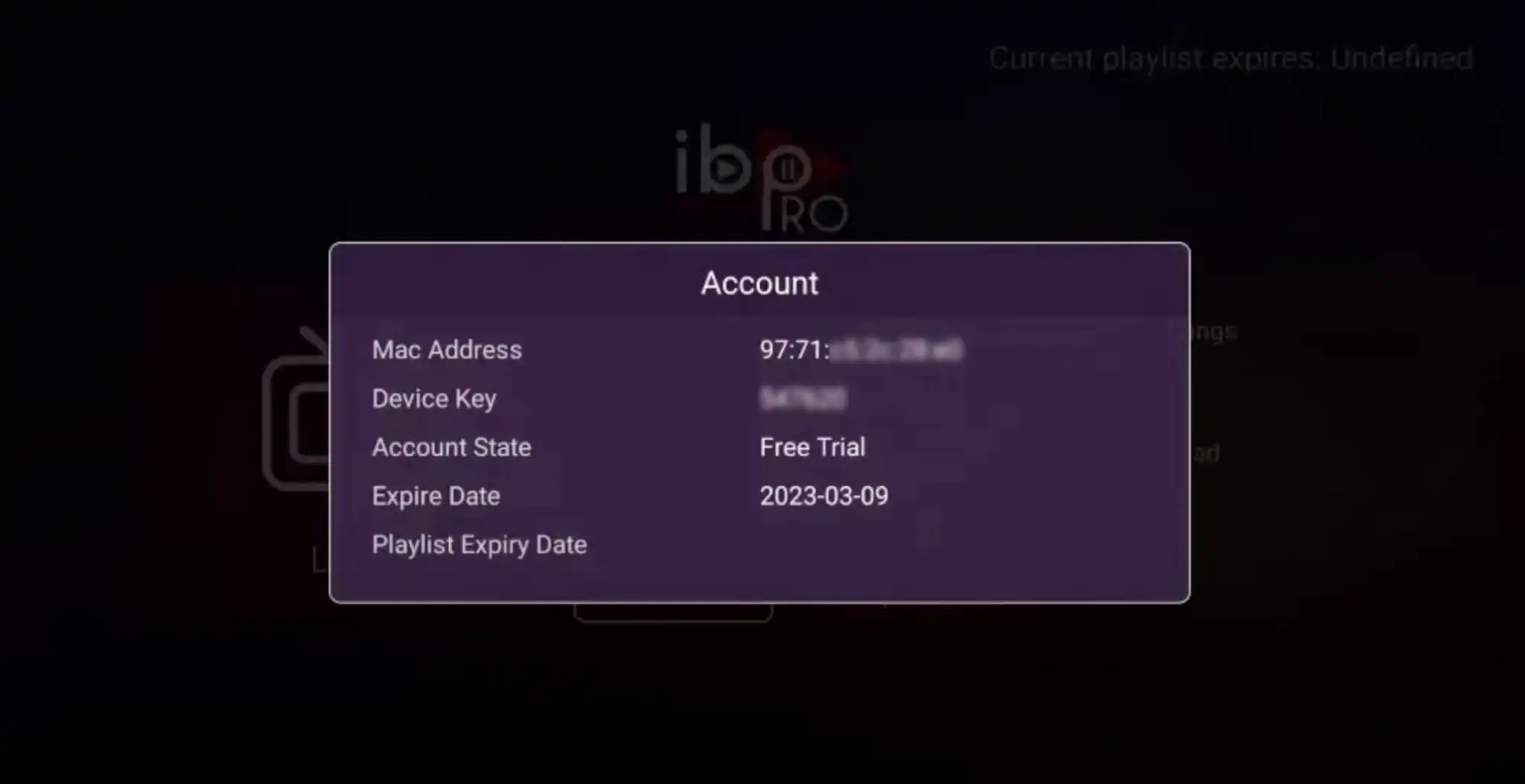
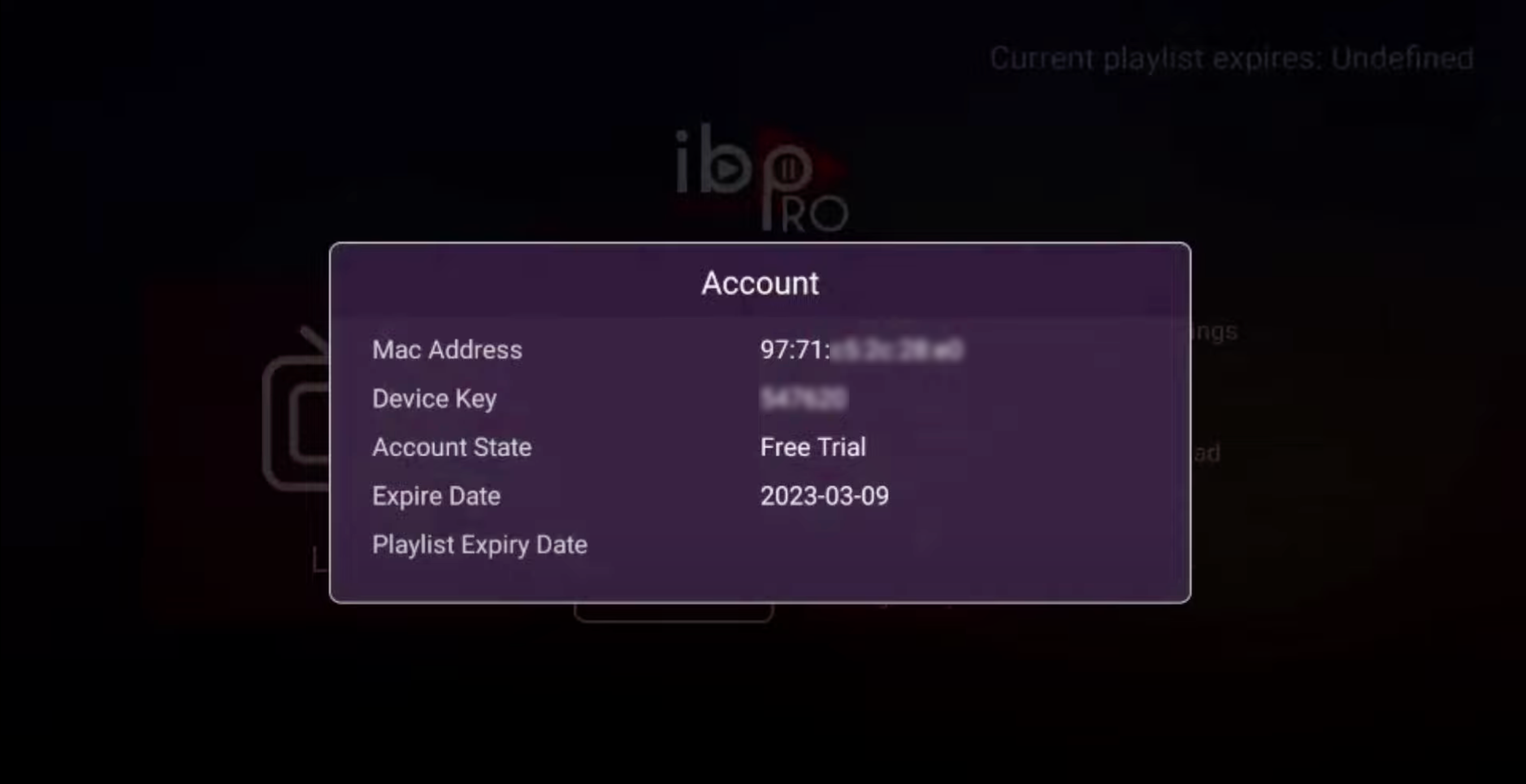
Launch IbPro Player and tap Account.
Note the MAC Address and Device Key displayed.
3. Link Your Device on the Website
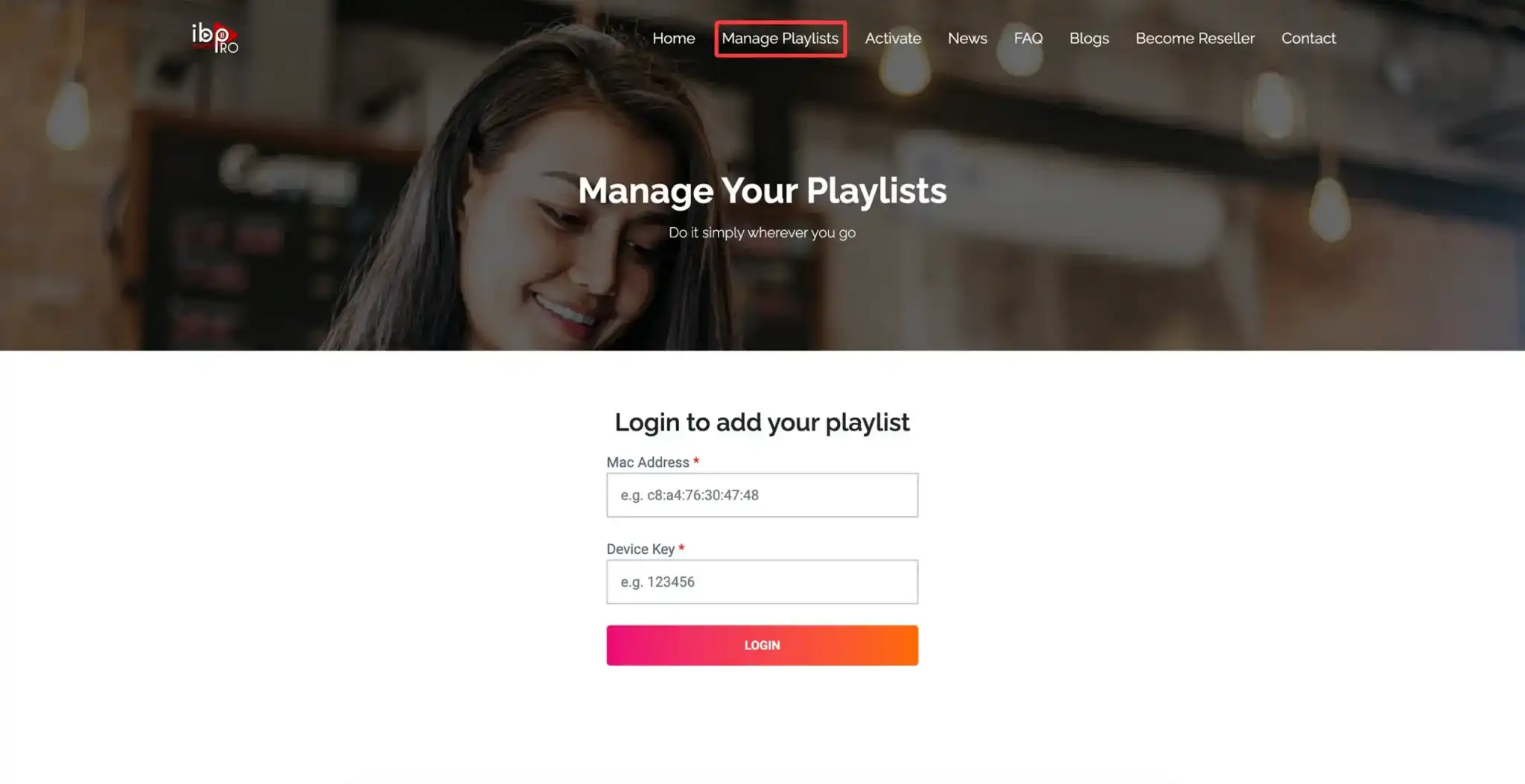
Go to: https://iboproapp.com/
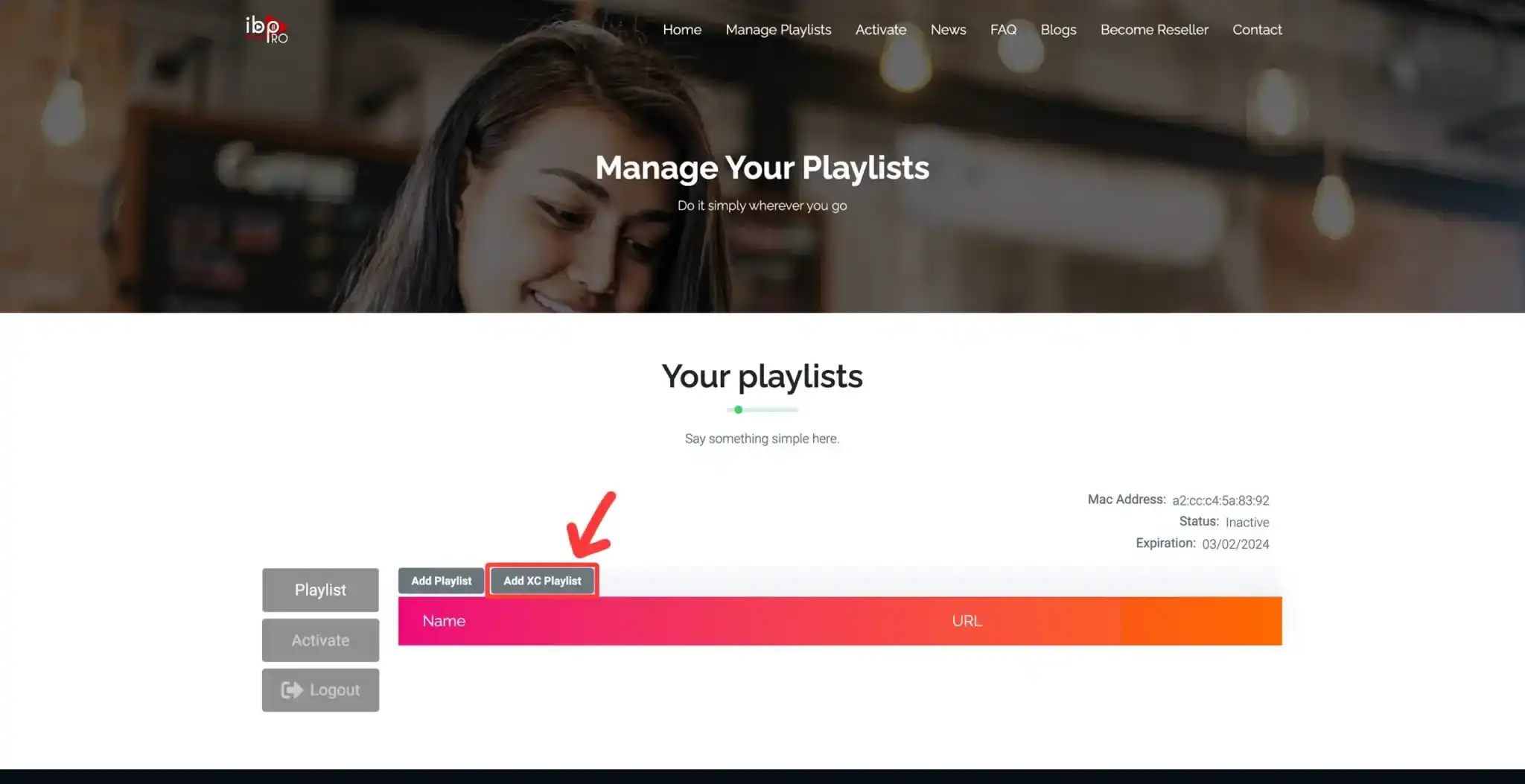
Click Manage Playlists.
Enter your MAC Address and Device Key, then select Log In.
4. Add Your IPTVNORDICPRO Playlist
Click Add XC Playlist.
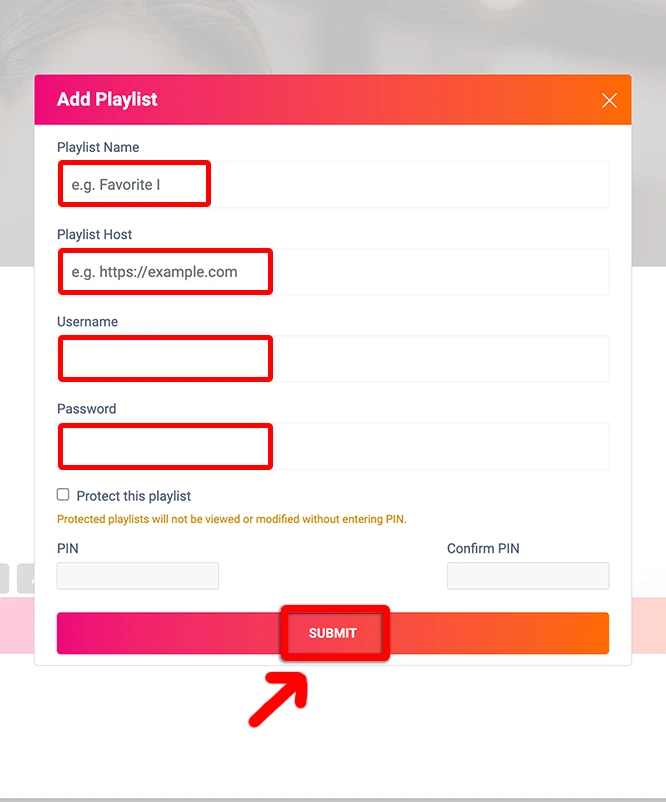
Enter Your xtreme code details:
Playlist Name:
IPTVNORDICPROServer Address (Host), Username, Password (from your subscription)
Click Submit.
5. Activate & Refresh the App
Return to IbPro Player on your device.
Restart the app.
Tap Continue, then Change Playlists.
Select IPTVNORDICPRO to load your channels.
Important: IBpro PlayerIPTV Player is a separate paid app inculde 7‑Day Free Trial included.
After the trial, revisit Manage Playlists on https://iboproapp.com/, log in with your MAC and Device Key, and complete the one‑time payment to continue streaming.
🎉 You’re all set! Enjoy seamless IPTV streaming with IbPro Player and your IPTVNORDICPRO service.
How to Install & Configure IPTV Smarters Pro for Smart tv ( Samsung & LG)
IPTV Smarters Pro is a free, user‑friendly app for streaming live TV, VOD, and series on Android devices. Follow the steps below to get started in minutes.
1. Download the App for Smart tv ( Samsung & LG)
Samsung Smart TV
Press the Smart Hub button on your Samsung remote, then search for IPTV Smarters Pro in the app store.
LG Smart TV
Hit the Home button on your LG remote, open the LG Content Store, and look up IPTV Smarters Pro. .
2. Log In via Xtream Codes API (Recommended)
Launch IPTV Smarters Pro.
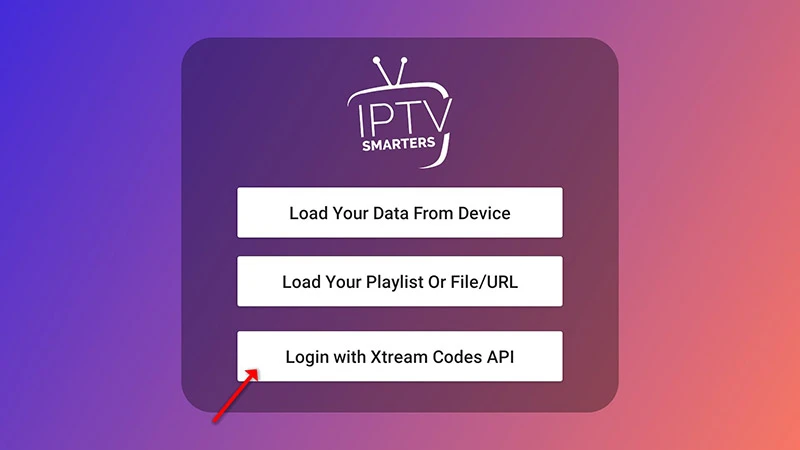
Tap Add User → Login with Xtream Codes API.
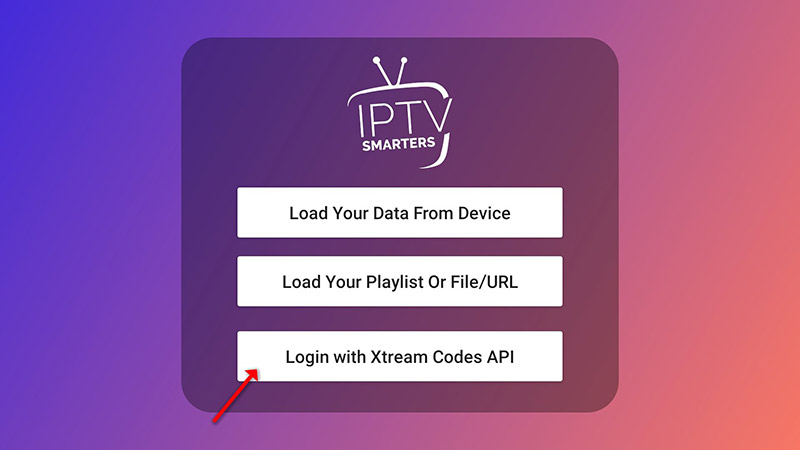
Fill in the fields:
Name:
IPTVNORDICPROUsername, Password, Server URL(Host): as provided after subscribing.
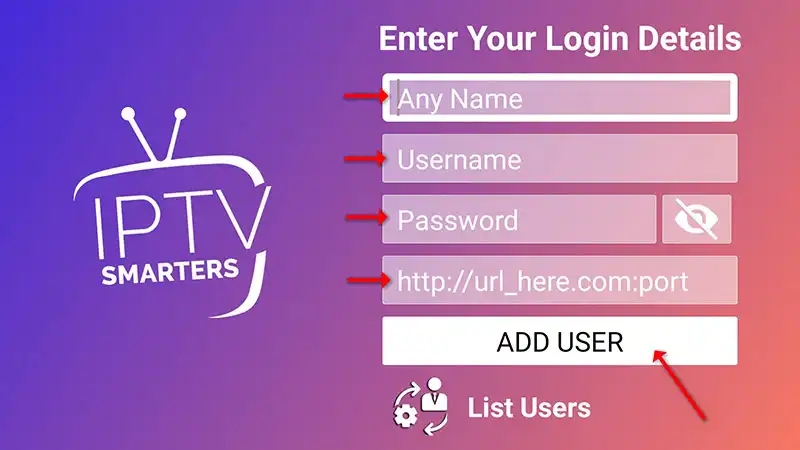
Tap Add User and wait a few seconds for your channels and EPG to load.
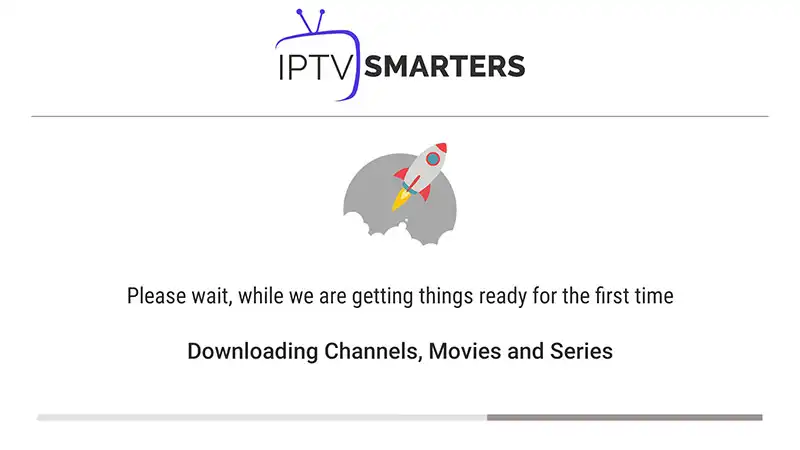
On the User List screen, select your profile to begin streaming.
3. Alternative Setup: M3U Playlist
If you prefer not to use Xtream Codes, repeat step 2 but choose Add New Playlist or File/URL and paste your M3U URL instead.

ib Player Pro (Paid)
IB Player Pro is a popular IPTV player application available on Smart TVs (like Samsung and LG), It offers a 7-day free trial period before asking for a one-time payment.
ibo Player (Paid)
IBO Player is a different player company but similar to IB Player Pro, a popular IPTV player application available on Smart TVs (like Samsung and LG). It offers a 7-day free trial period before asking for a one-time payment.

How to Install IBO Player on Your Smart TV
Step 1: Download the App
- Open the App Store on your Smart TV.
- Search for ibPlayer Pro, then click “Install”.
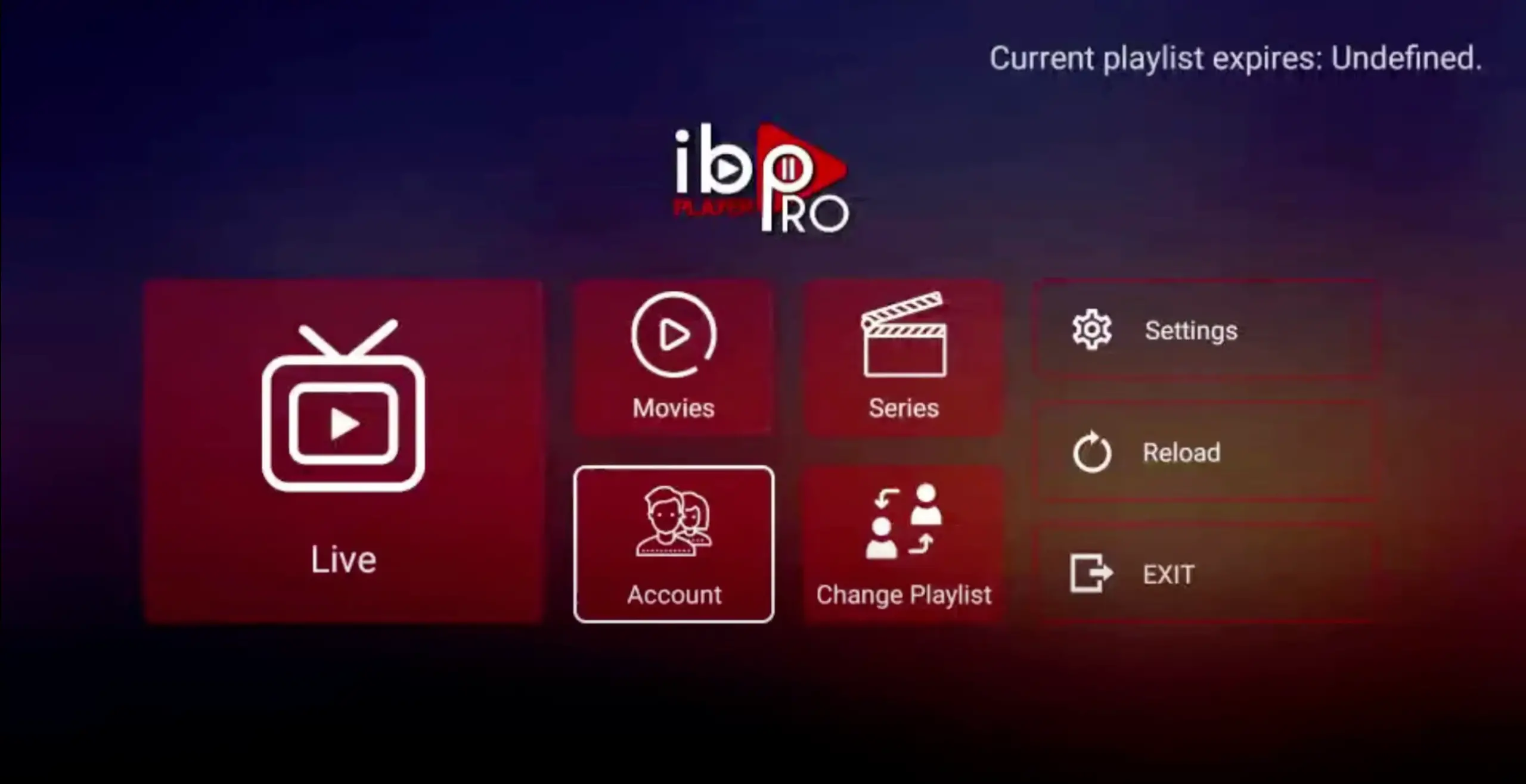
1. Open the app and click “Account” to see an activation screen displaying a unique Activation Code (MAC Address and Device Key).
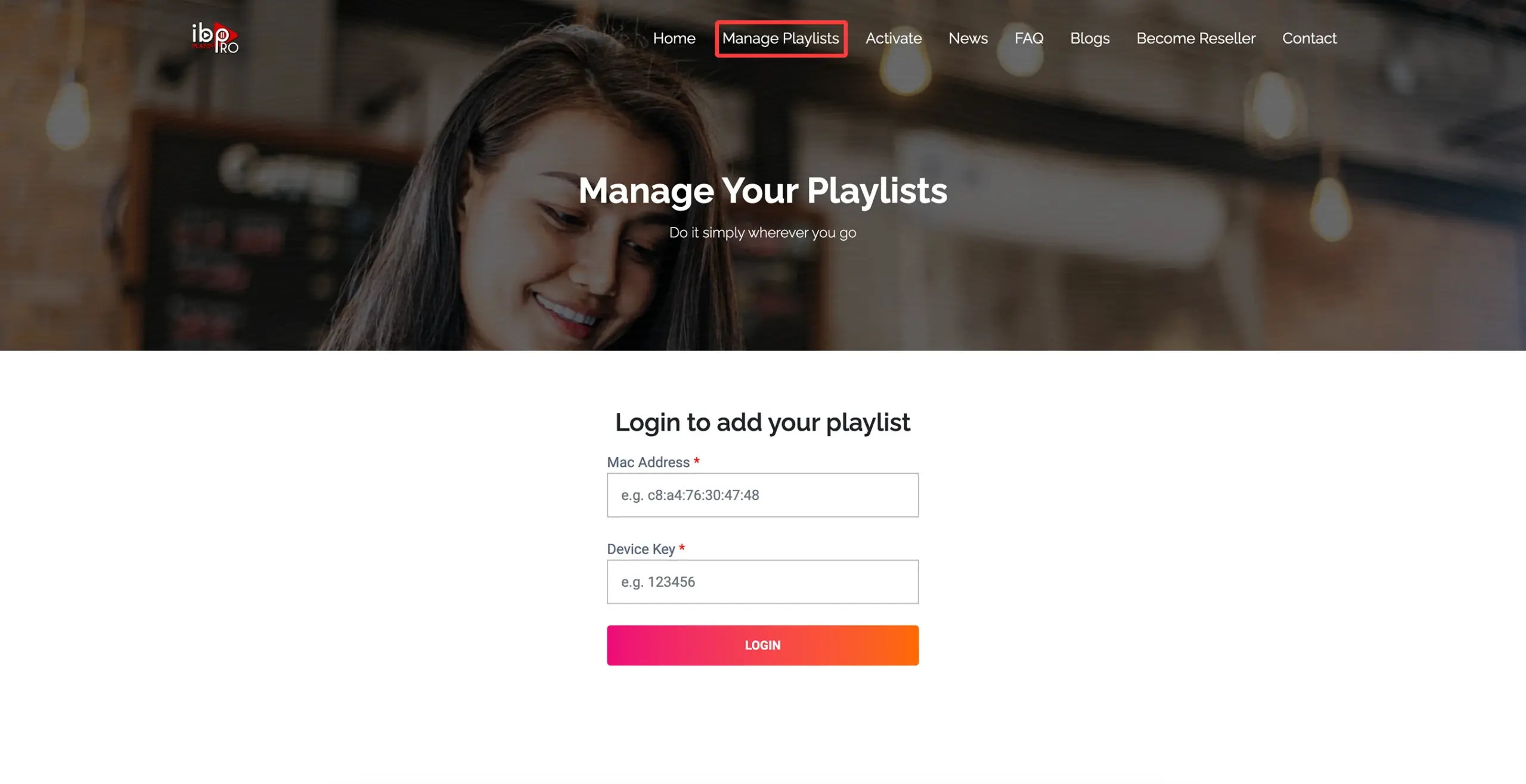
2. Go to the IBO Player Pro website: https://iboproapp.com/ and click “Manage Playlists” in the menu. Enter your MAC Address and Device Key from the app, then click “Log In”.
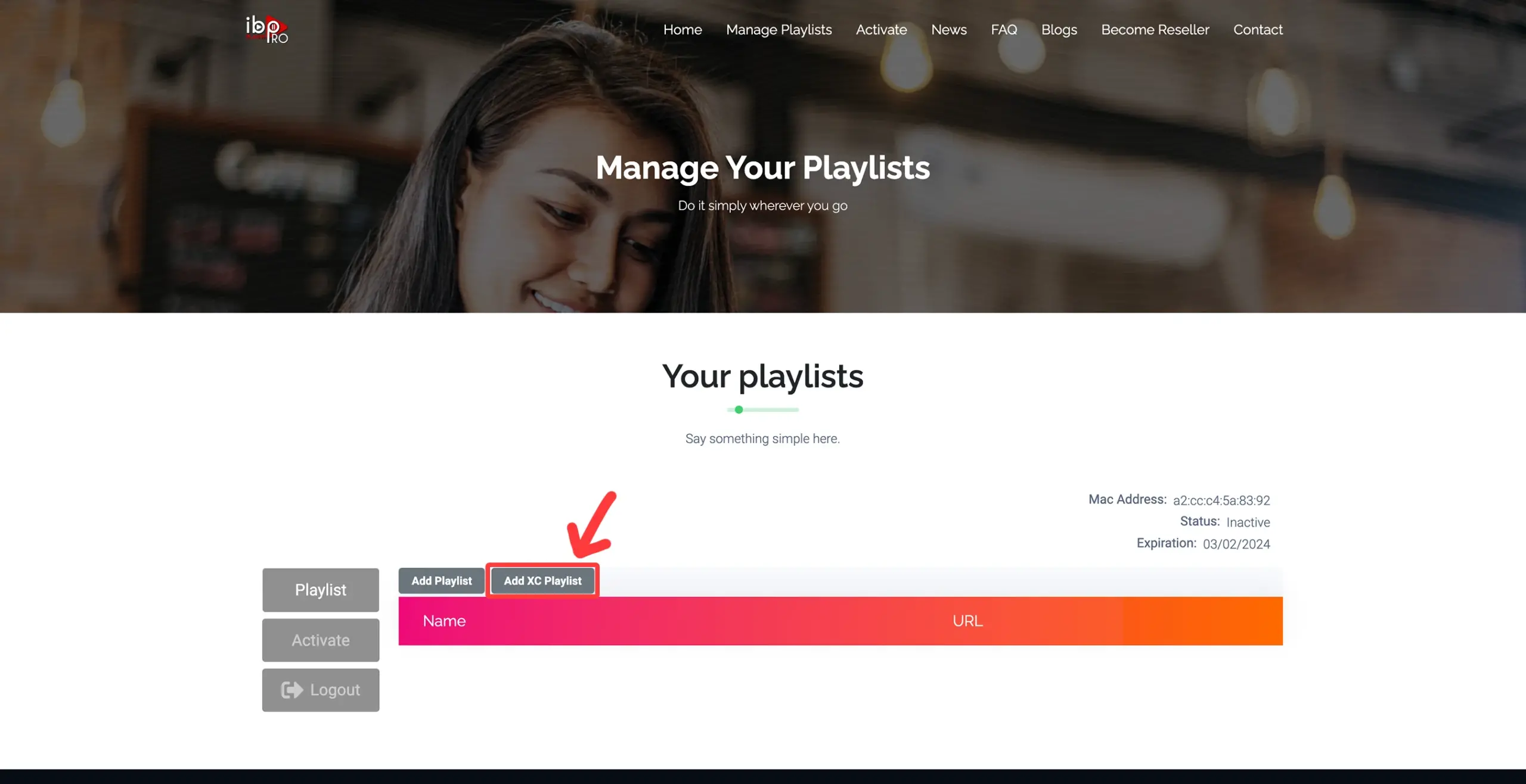
3. Click “Add XC Playlist” (recommended method).
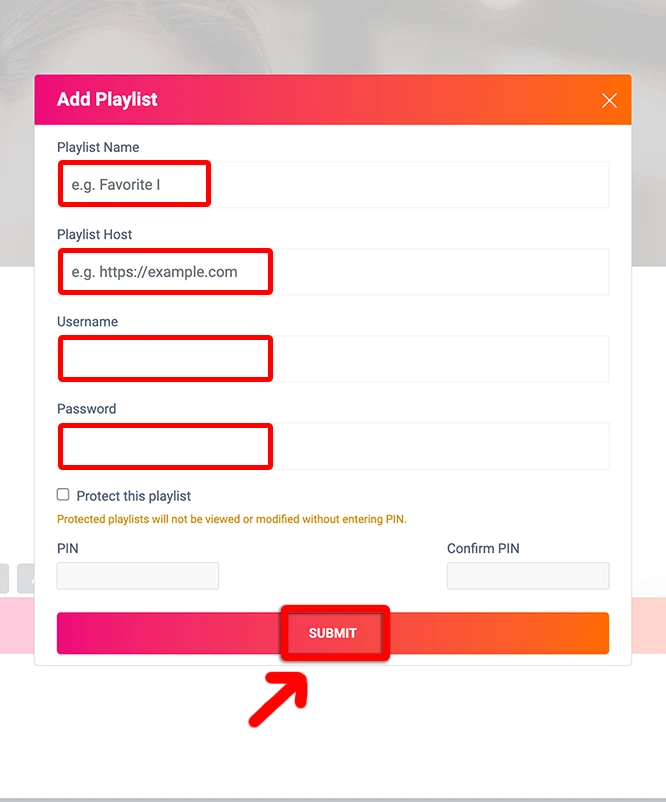
4. Enter “IPTVNORDICPRO” as the Playlist Name. Then, enter your Xtream Codes login details (Server Address, Username, and Password) that you receive after subscribing. Finally, click “Submit” to continue. Get your subscription here.
5. After activation, go back to your device and restart the IBO Player Pro app for changes to take effect. Then, select “Continue”, followed by “Change Playlists”, and connect to your IPTVNORDICPRO playlist. Enjoy your streaming experience!
Important: Subscription Activation
- The app includes a 7-day free trial. Once it expires, go to https://iboproapp.com/manage-playlists/, log in using your MAC Address and Device Key, and complete the one-time payment.
🎉 Congratulations! You have successfully set up IBO Player Pro for seamless IPTV streaming.
How to Install IBO Player on Your Smart TV
Step 1: Download the App
- Open the App Store on your Smart TV.
- Search for IBO Player, then click “Install”.
Step 2: Get the Activation Code
- Open the IBO Player app.
- Click on “Playlist” to see an activation screen displaying a MAC address and Device Key.
Step 3: Activate Your Playlist
- Visit IBO Player website on your phone or computer (or scan the QR code on your TV screen).
- Click “Manage Playlists” in the menu.
- Enter your MAC address and Device Key, then click “Log In”.
Step 4: Add Your IPTV Playlist
- Click “M3U Link” or “Xtream Codes”.
Step 5: Enter IPTV Credentials
- In the first box, enter “IPTVNORDICPRO” as the playlist name.
- In the next fields, enter the M3U link or Xtream Codes login details (server, username, and password) provided after subscribing.
- Click “Submit” to continue.
Step 6: Restart and Enjoy IPTV
- Restart the IBO Player app for the changes to take effect.
- Select “Continue”, then go to “Playlists”, and connect to your LiveStreamingTV playlist.
- 🎉 Enjoy streaming your favorite IPTV channels!
Important Note:
- IBO Player offers a 7-day free trial.
- After the trial expires, visit IBO Player Activation, log in with your MAC Address and Device Key, and complete the one-time payment.
🎉 Congratulations! You have successfully set up IBO Player for seamless IPTV streaming.
Follow the steps below to install IPTV Smarters Pro on your Smart TV and Android devices.
1. Open the Play Store or the app store on your device, search for IPTV Smarters Pro, and then click “Install.”
2. Setting up IPTV Smarters:
There are two ways to do this—either using Xtream Codes API (Username, Password, and Server URL) or an M3U playlist. For a smoother experience, we recommend setting up via Xtream Codes API, as it provides an integrated EPG system to enhance your streaming experience.
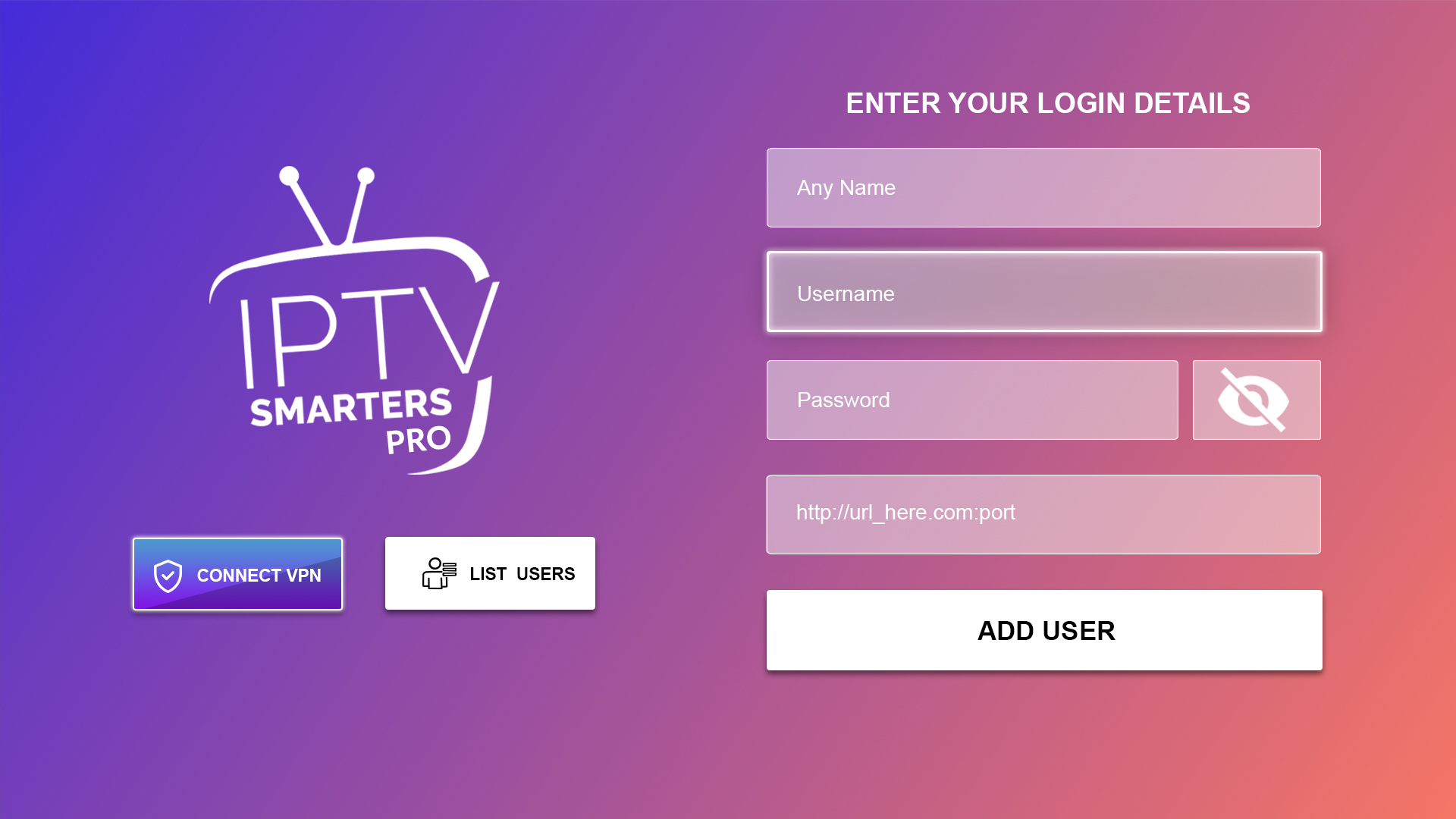
Step 1: Open the app once it is downloaded, click “Add User,” and then select “Login with Xtream Codes API.”
Step 2: Enter “IPTVNORDICPRO” as the Name in the first box. Then, in the second, third, and fourth boxes, enter the Xtream Codes login details (Playlist name, Username, Password, and Server URL), remember in server url, enter the url for smarters pro we sent you that we provide after you subscribe. Finally, click “ADD USER.” Get your subscription Here.
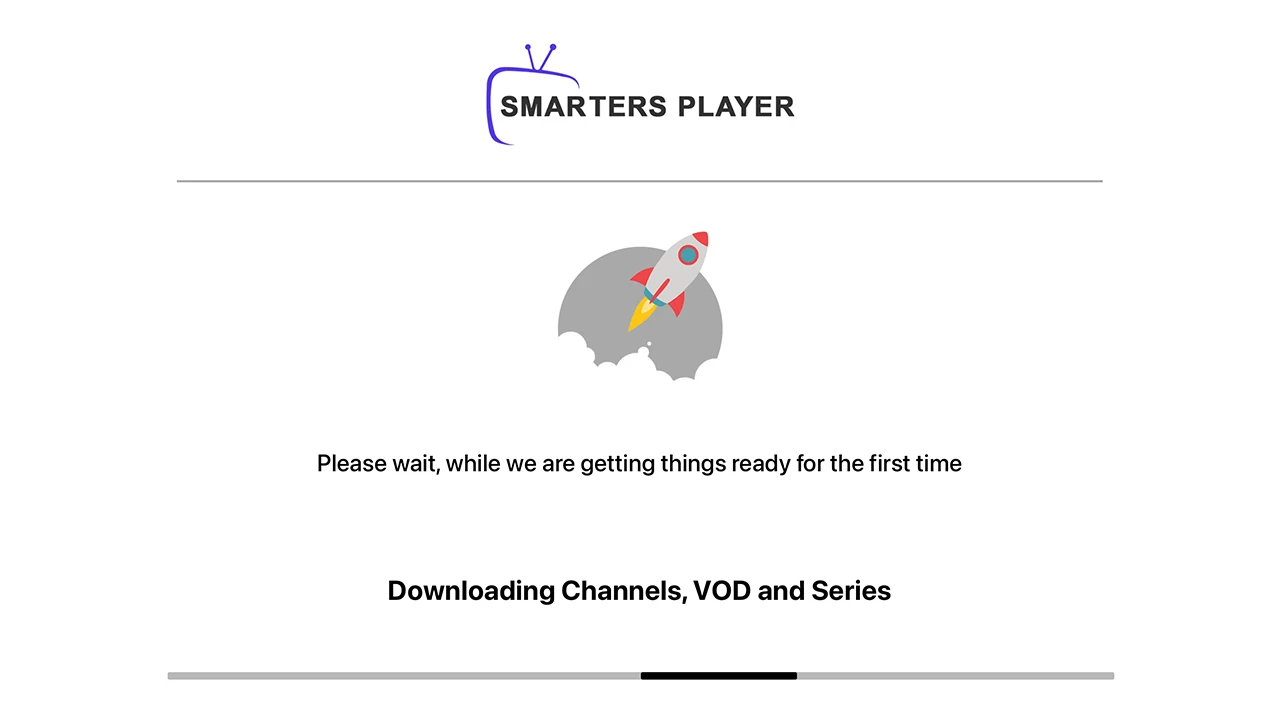
Step 3: Wait a few seconds.
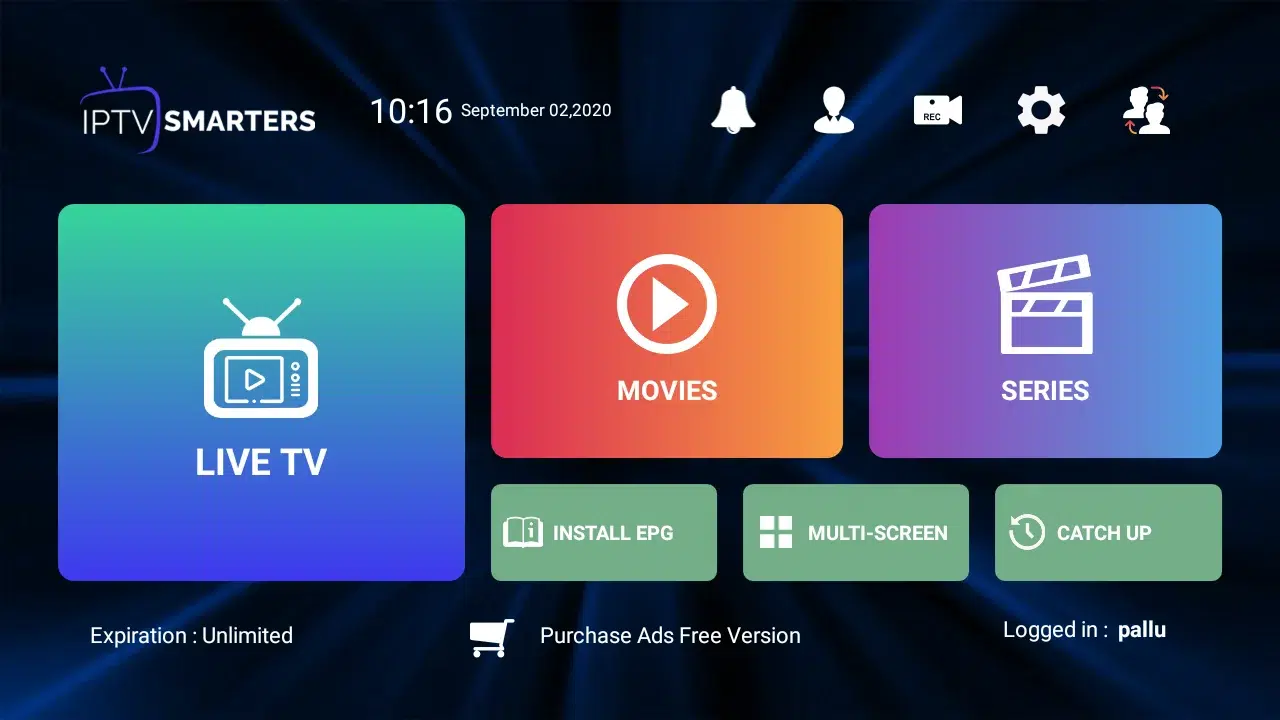
Step 4: Once logged in, you will see the user list screen. Select your newly created profile as shown in the images.
Congratulations! You have now completed the setup of the IPTV Smarters Pro app for seamless streaming.
Why Setup IPTV on Smart TV
Reasons of Setting IPTV on Smart TV (samsung and lg)
- Big Screen Experience: Watch live channels and on‑demand content in HD or 4K.
- No Extra Hardware: Most modern Smart TVs support IPTV apps directly.
- Easy Navigation: Intuitive menus and remote control integration.
Common Troubleshooting
Common Troubleshooting of Setup IPTV on Smart TV (samsung and lg)
- App Won’t Install? Check that your TV firmware is up to date and has enough storage.
- Buffering Issues? Ensure your internet speed is at least 50 Mbps for HD streams.
- Login Errors? Verify your username/password and server URL in the app settings.
💡 Don’t have an IPTV subscription yet? Choose your plan now and start streaming instantly!
Watch on any device
If you want to watch on another device?
Click here to set up IPTV on another device.
Frequently Asked Questions About Setting up IPTV On Smart tV:
Which Smart TV brands support IPTV?
Do I need extra hardware for IPTV?
Can I switch between multiple IPTV apps?
Need help? Contact our support team.
We’re here to ensure you have the best IPTV experience possible. Whether you need help with our services, technical support, or just want to share your feedback, our dedicated support team is always ready to assist you.