...

How to Set Up IPTV on Amazon Firestick & Fire TV

Home / IPTV Setup Guides

Firestick IPTV Setup

Set Up IPTV on Amazon Firestick & Fire TV

Turn your Firestick or Fire TV into the ultimate IPTV streaming device! This guide covers everything you need to install and configure top IPTV apps—IPTV Smarters, TiviMate, IbPro Player—on any Firestick generation or Fire TV. Follow our steps below and start watching your favorite channels in minutes.

Fire TV

What You Need Before You Start

  • IPTV Subscription: Your M3U URL, username, and password from your IPTV provider.
  • Amazon Account: Linked to your Firestick or Fire TV device.
  • Internet Connection: At least 50 Mbps for HD streams; 100 Mbps+ recommended for 4K.
  • Downloader App: Available on the Amazon App Store for sideloading apps.

Firestick IPTV Setup Steps:

Here’s how to get IPTVNORDICPRO up and running on your Firestick—just install the Downloader app, then follow these easy steps:

  1. From the Firestick Home screen, navigate to Find.
    downolader step 1

  2. Choose Search to bring up the on‑screen keyboard.
    downolader step 2

  3. Type Downloader, then select it from the suggestion list.
    downolader step 3

  4. Look for the orange‑icon Downloader app and open its detail page.

  5. Click Get (or Download) to install the app.
    downolader step 4

Depending on your Fire OS version, follow the steps for your device:


For Fire OS 6 (and earlier)

  1. Press the Home button on your Firestick remote.

  2. Navigate right to the Settings (gear) icon.
    Sideloading-Firestick -1

  3. Scroll down and select My Fire TV.
    Sideloading-Firestick -2

  4. Open Developer Options.
    Sideloading-Firestick -3

  5. Locate Apps from Unknown Sources and switch it ON.
    Sideloading-Firestick -4

You can now install APK files using Downloader or any other sideloading tool.


For Fire OS 7 (and later)

  1. Press the Home button on your Firestick remote.
    devmode-1 (1)

  2. Go to Settings (gear) on the far right.
    devmode-2

  3. Scroll down to and select My Fire TV.
    devmode-3

  4. Choose About, then highlight Fire TV Stick and press OK seven times to unlock Developer Options.
    devmode-4

  5. Return to My Fire TV and open Developer Options.
    devmode-5

  6. Enable ADB Debugging (this also allows Apps from Unknown Sources).
    devmode-6

With these toggled on, you’re all set to sideload APKs on your Firestick.

Popular Firestick Apps:

Here are the popular FireStick apps:
Choose and follow the methods below to set up your IPTV subscription:

How to setup IPTV on TiviMate IPTV Player?

tivimate app(

TiviMate IPTV is a premium Android app renowned for its robust feature set—recording, Picture‑in‑Picture, catch‑up, and more. A single TiviMate Premium license works on up to 5 devices, making it our top pick for an exceptional live‑TV experience.

Part 1: Install TiviMate on Firestick

  1. Open Apps
    From your Firestick Home screen, navigate to Apps.

  2. Launch Downloader
    Open the Downloader app and choose Enter a URL.
    sideload TiviMate-on-FireStick

  3. Enter the Code
    Type in 272483 exactly and hit Go to fetch the TiviMate installer.

  4. Install
    When prompted, click Install.
    Install-TiviMate

Part 2: Setting up IPTV In Tivimate

  1. Launch & Add a Playlist
  2. Open TiviMate IPTV.
  3. Select Add playlist on the home screen.
    How-to-setup-IPTV-on-TiviMate-IPTV-Player-1
  4. Choose “Xtream Codes Login”
  5. Tap Xtream Codes Login, then hit Next.
    How-to-setup-IPTV-on-TiviMate-IPTV-Player-2
  6. Enter Your Credentials we sent you in email
  7. Server URL: The base Host URL (The short one) in your xtreme code.
  8. Username & Password: Found in  Xtream Codes details.
  9. (Optional) Tick Include VOD if you want Video‑on‑Demand libraries.
    How-to-setup-IPTV-on-TiviMate-IPTV-Player-3
  10. Wait for Channels to Load After a few seconds, your channel list and EPG guide will populate.

  1. Important: TiviMate IPTV Player is a separate paid app—even with our IPTV service, you must purchase TiviMate Premium to unlock favorites, recording, catch‑up, VOD, and other advanced features (up to 5 devices).

  2. Upgrade Steps:
  3. Install & Sign Up
  4. On your Android phone or tablet, download TiviMate Companion from Google Play.
  5. Create an account and choose Lifetime ($29.99) or Annual ($9.99).
  6. Activate Premium On your Fire TV Stick
  7. On your Fire TV Stick, open TiviMate IPTV.
  8. Go to Settings → Unlock Premium and log in with your Companion credentials.
How to Set Up IbPro Player for firestick

ibpro player


IBO Player Pro – Easy IPTV Streaming
IBO Player Pro is a streamlined IPTV app for streaming live TV, movies, and on-demand content. It offers a 7-day free trial before requiring a one-time payment.

How to Install IBPro Player Pro on Firestick
1. Go to the Apps menu from the FireStick home screen.

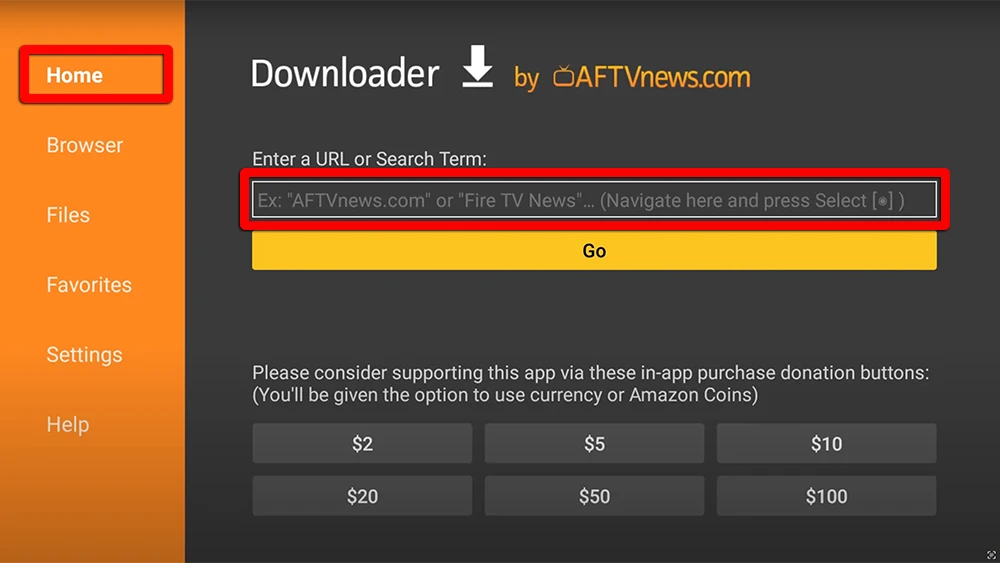
2. Open the Downloader app and select “Enter a URL” on the home screen.

setup2search downloader app-on-FireStick

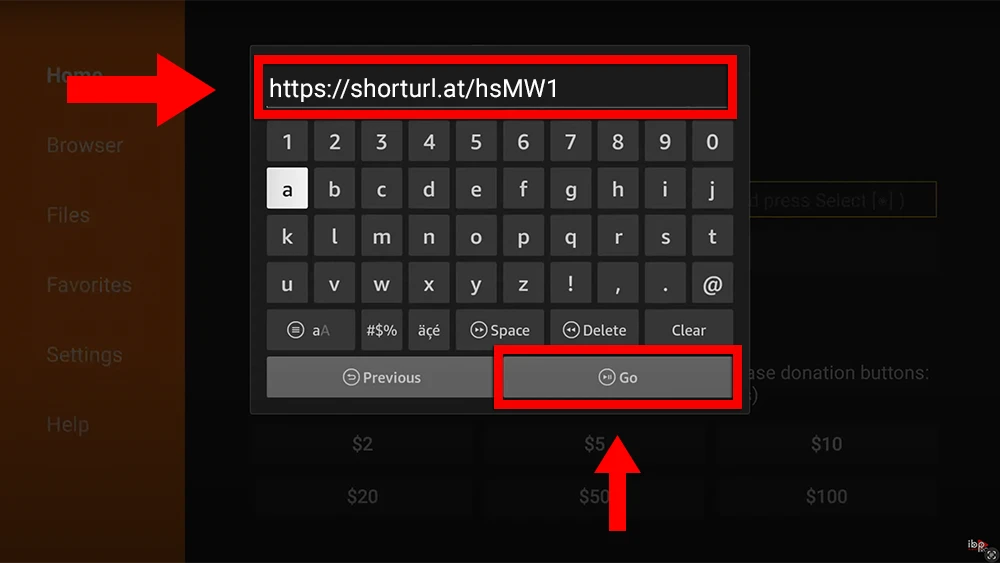
3.Enter the following The downloader code: 481220  and click “GO”.
Or You can Download the Apk for Android, Amazon Fire TV: https://iboproapp.com/ibopro.apk
setup link ibo1and click “GO”

4. Click “Install” when prompted.

Quick Setup Guide for IBO Player Pro – Start Streaming IPTV Instantly

1. Retrieve Your Activation Code

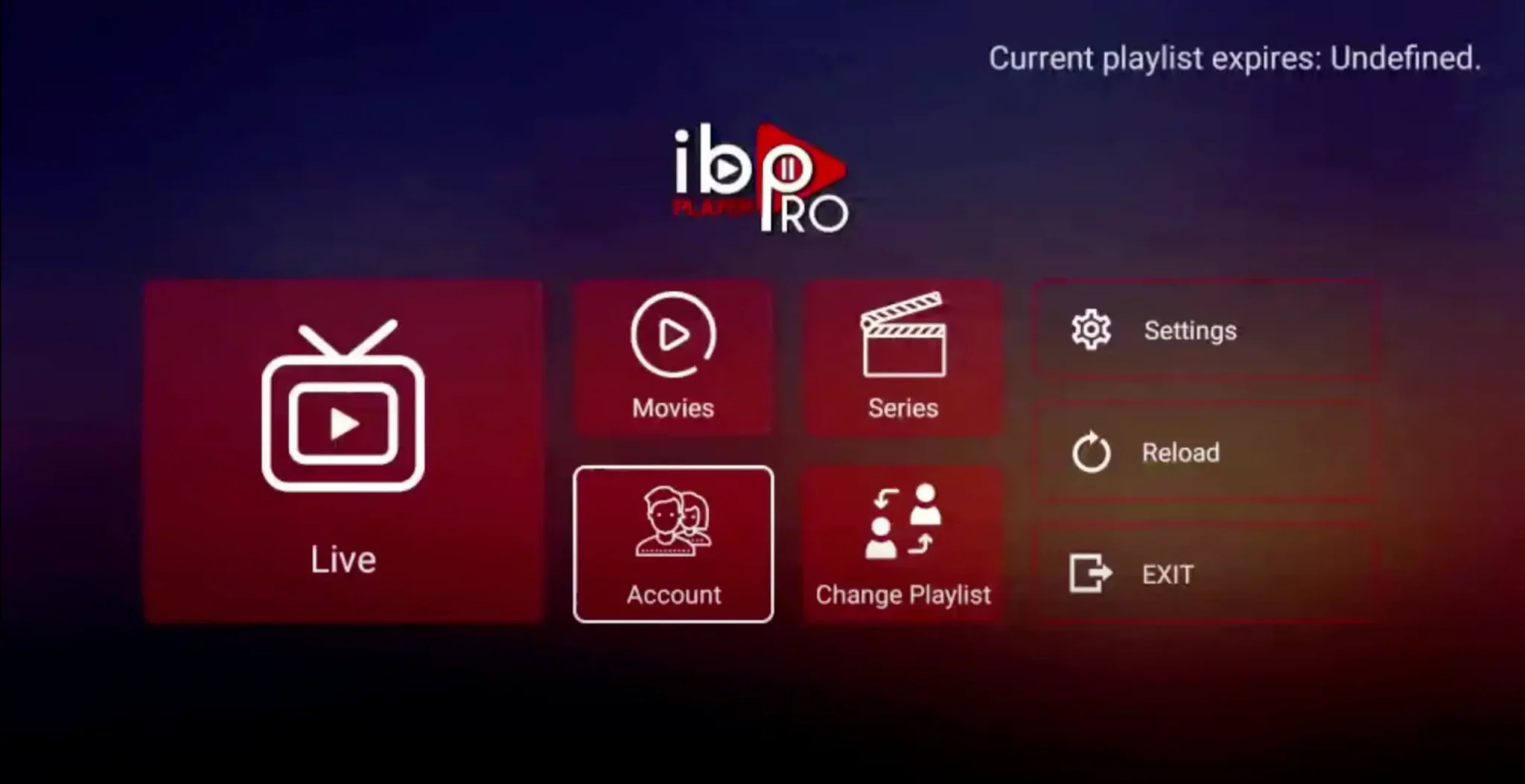
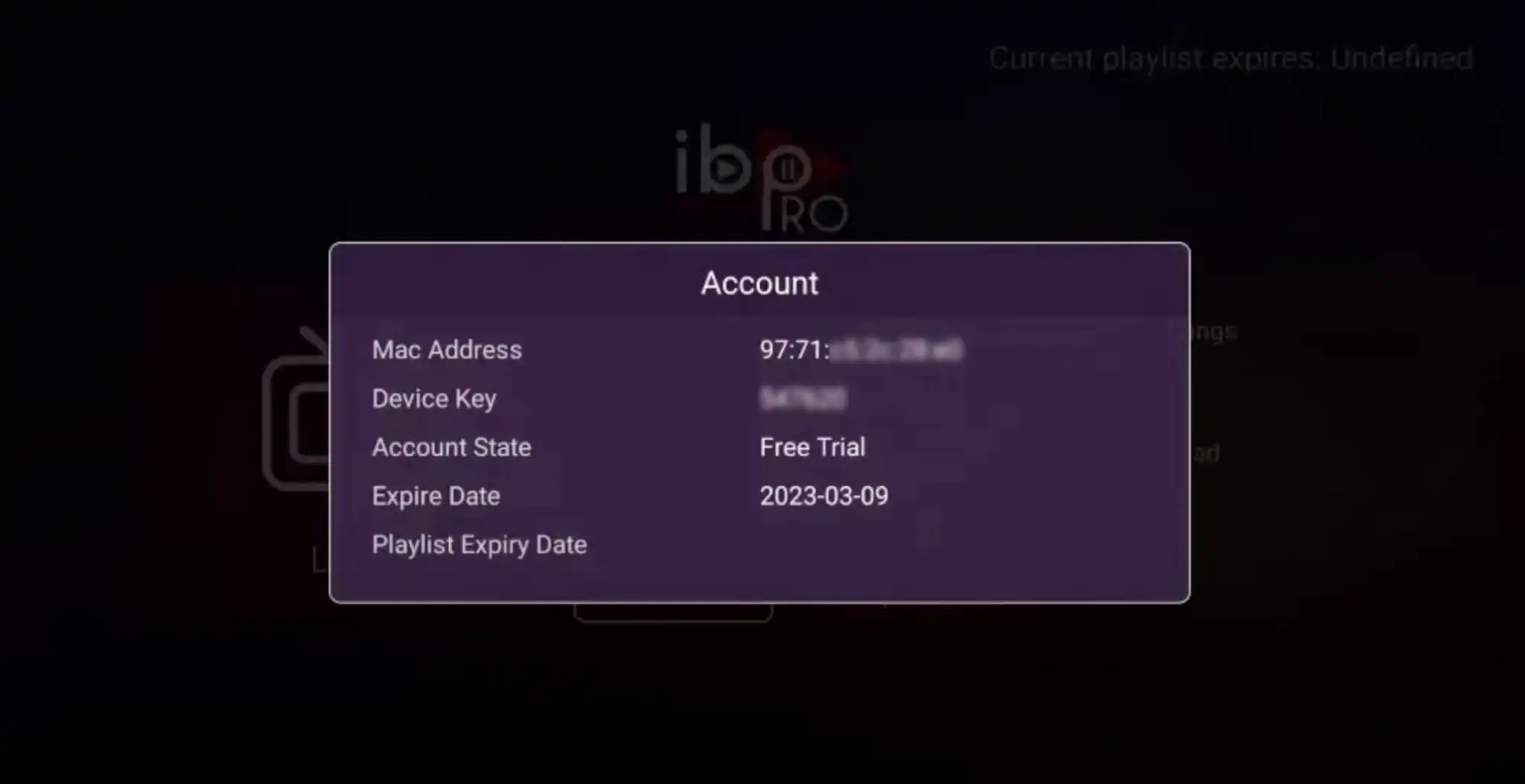
Open and Launch IbPro Player and tap Account.

Note the MAC Address and Device Key displayed.

ibo-pro-setup1-scaled

ibo-pro-setup2

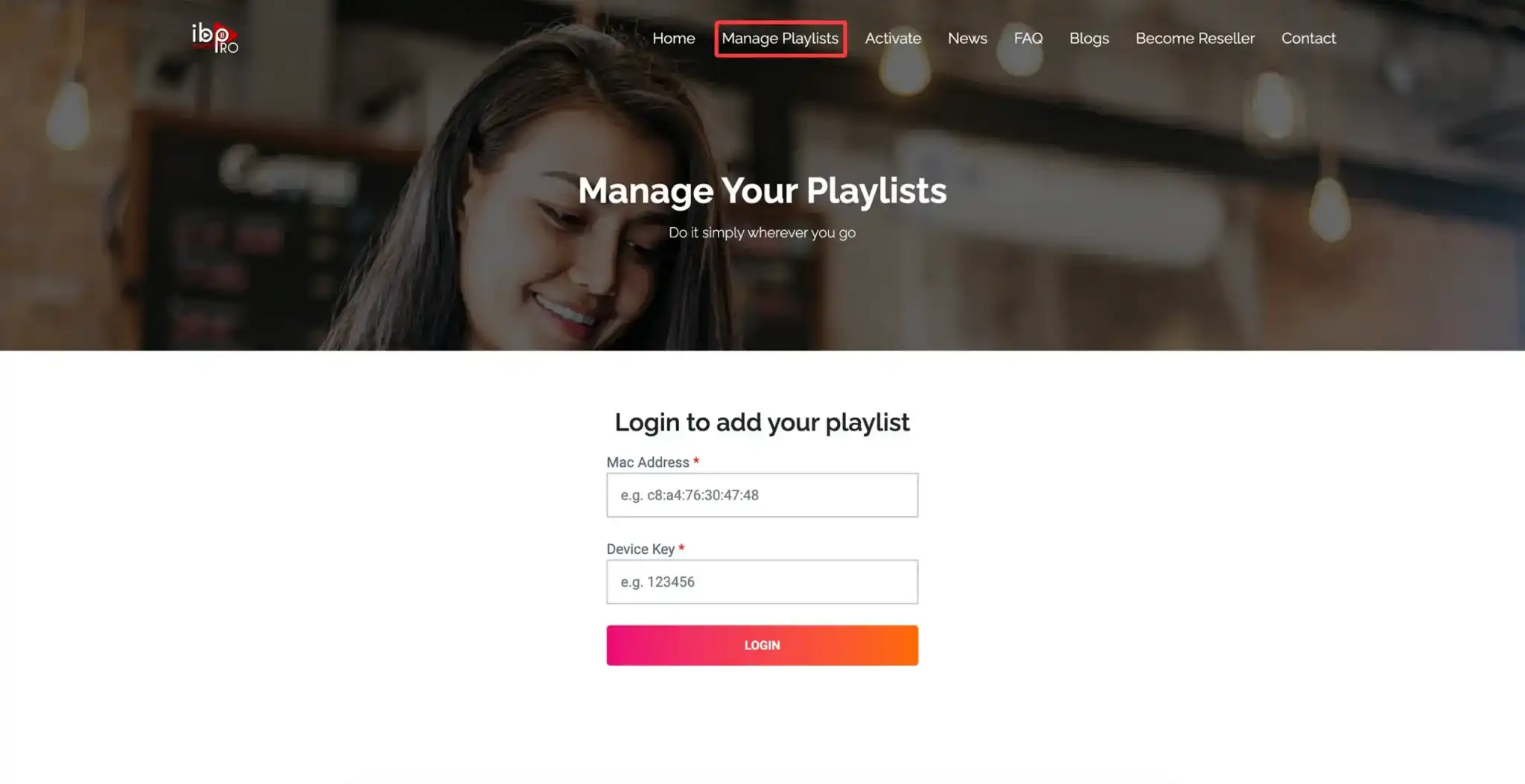
3. Link Your Device on the Website

Go to: https://iboproapp.com/

Click Manage Playlists.

Enter your MAC Address and Device Key, then select Log In.

ibo-pro-setup3

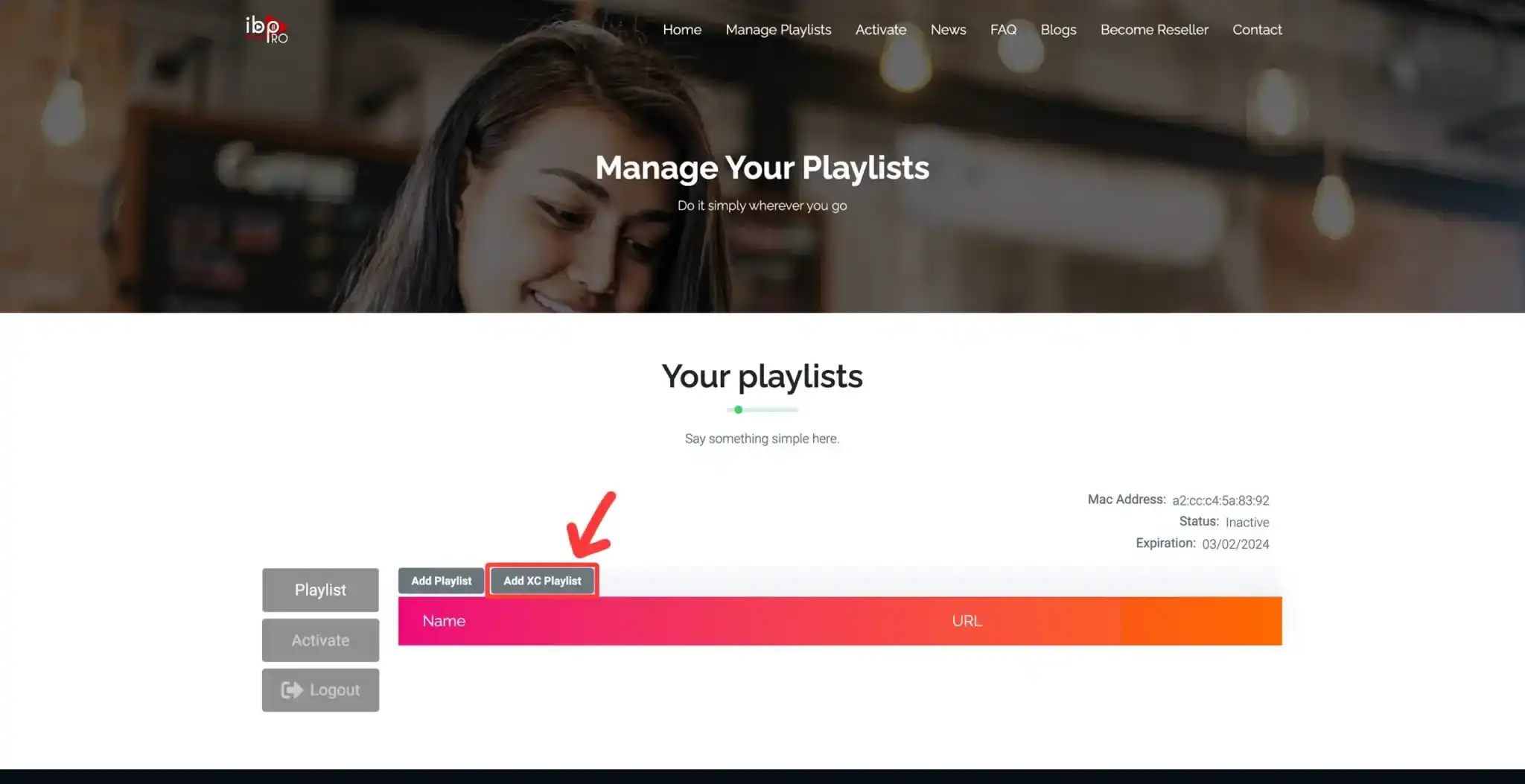
4. Add Your IPTVNORDICPRO Playlist

Click Add XC Playlist
ibo-pro-setup4-

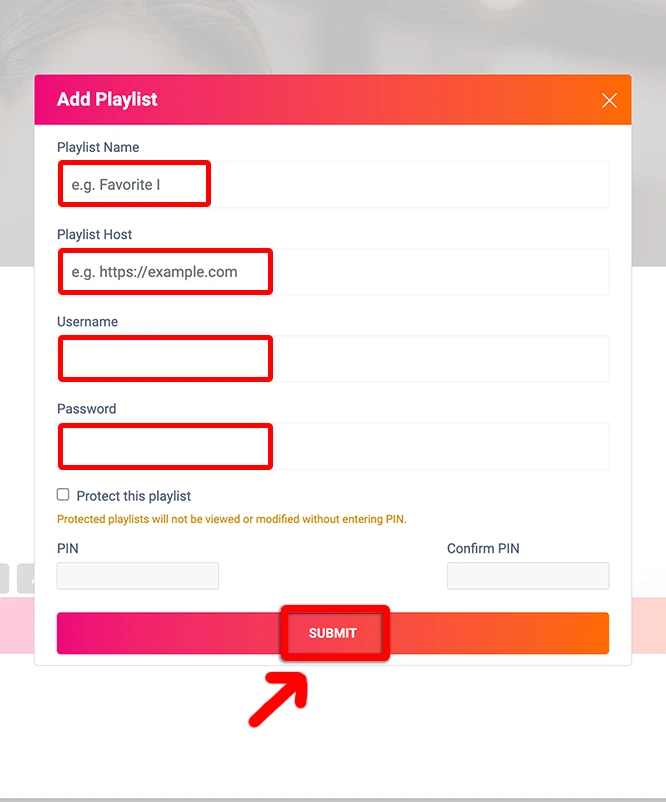
Enter Your xtreme code details:

Playlist Name: IPTVNORDICPRO

Server Address (Host), Username, Password (from your subscription)

Click Submit.

ibo-pro-setup5

5. Activate & Refresh the App

Return to IbPro Player on your device.

Restart the app.

Tap Continue, then Change Playlists.

Select IPTVNORDICPRO to load your channels.


  1. Important: IBpro PlayerIPTV Player is a separate paid app inculde 7‑Day Free Trial included.
  • After the trial, revisit Manage Playlists on https://iboproapp.com/, log in with your MAC and Device Key, and complete the one‑time payment to continue streaming.


  1. 🎉 You’re all set! Enjoy seamless IPTV streaming with IbPro Player and your IPTVNORDICPRO service.

How to Install & Configure IPTV Smarters Pro on Firestick

IPTV Smarters Pro is a free, user‑friendly app for streaming live TV, VOD, and series on Android and Amazon Firestick & Fire TV
devices. Follow the steps below to get started in minutes.


1. Download the App for Smart tv android, tv boxes and firstick:

  1. Open Downloader and:
    Enter This code in Downloader app: 6578878
    or type this link:
    https://www.iptvsmarters.com/iptv-smarters-4.0.6.apk

  2. Tap Go to download and install IPTV Smarters Pro.


2. Log In via Xtream Codes API (Recommended)

  1. Launch IPTV Smarters Pro.

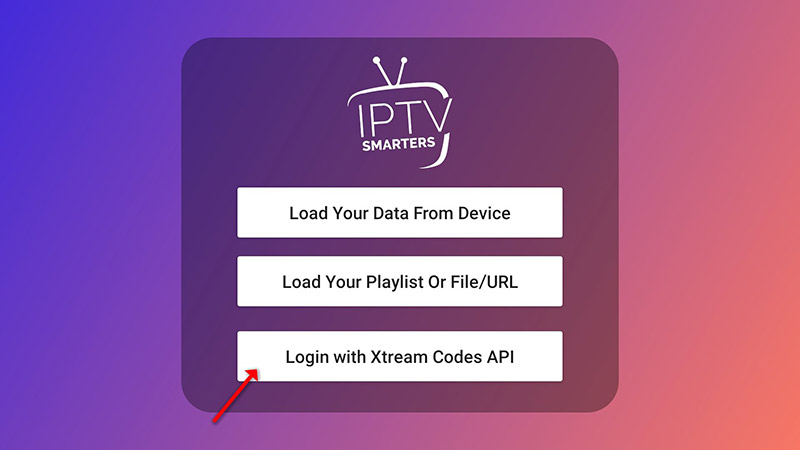
  2. Tap Add UserLogin with Xtream Codes API.
    How-to-setup-IPTV-on-iptv-smarters-pro

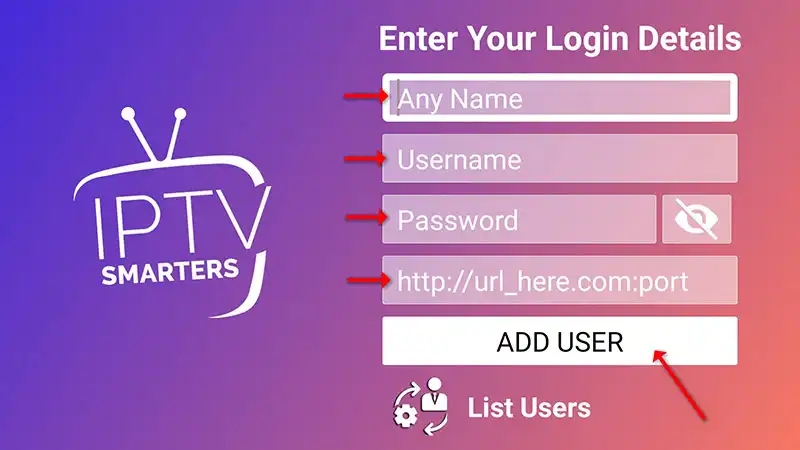
  3. Fill in the fields:

    • Name: IPTVNORDICPRO

    • Username, Password, Server URL(Host): as provided after subscribing.
      How-to-setup-IPTV-on-iptv-smarters-pro-2

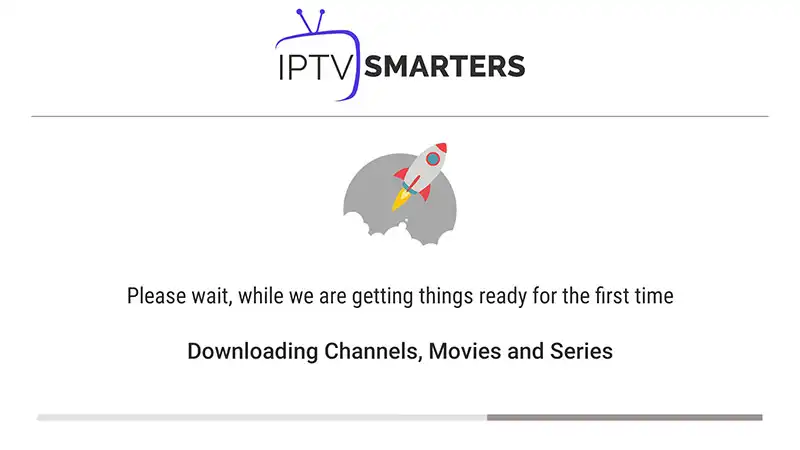
  4. Tap Add User and wait a few seconds for your channels and EPG to load.
    How-to-setup-IPTV-on-iptv-smarters-pro-3

  5. On the User List screen, select your profile to begin streaming.


3. Alternative Setup: M3U Playlist

If you prefer not to use Xtream Codes, repeat step 2 but choose Add New Playlist or File/URL and paste your M3U URL instead.

MzViM2FlZmMt._CB578215295_-removebg-preview

Why Choose Amazon Firestick & Fire TV for IPTV?

  • Plug-and-Play Setup: Easy to connect via HDMI, no extra hardware needed.
  • User-Friendly Interface: Intuitive Fire OS and remote navigation for seamless browsing.
  • App Ecosystem: Access to a wide range of IPTV apps, media players, and utilities from the Amazon App Store.
  • Performance: Smooth streaming with support for HD and 4K on Fire TV models.
  • Portable: Compact design allows you to carry your streaming setup anywhere.
  • Regular Updates: Amazon provides frequent firmware and security updates.
Fire_TV with trasparence background

Common Troubleshooting

Common Troubleshooting of Setup IPTV on Firestick & Fire TV

  1. Downloader Not Installing: Ensure Unknown Sources is enabled.
  2. Playback Errors: Double-check your M3U link and credentials.
  3. Slow Performance: Close background apps and free up Firestick storage.

💡 Not subscribed yet? Choose a plan and start streaming on Amazon Firestick & Fire TV
now!

Watch on any device

IPTV devices icon

If you want to watch on another device?
Click here to set up IPTV on another device.

Frequently Asked Questions About Setting up Firestick & Fire TV

Can I sideload IPTV apps on Firestick?

Yes! Enable Unknown Sources for Downloader and use it to sideload any IPTV APK.

Do I need a VPN for Firestick IPTV?

A VPN can protect your privacy and help bypass geo-blocks and ISP Blocks, but with our service has VPN integrated, and it's not mandatory to Buy A VPN.

How do I update a sideloaded IPTV app?

Re-download the latest APK via Downloader and install it over the existing version.
iptv customer support

Need help? Contact our support team.

We’re here to ensure you have the best IPTV experience possible. Whether you need help with our services, technical support, or just want to share your feedback, our dedicated support team is always ready to assist you.